Showing posts with label Editor. Show all posts

Wednesday, June 14, 2017

Beautification in Brackets

Brackets Extension that formats open HTML, CSS and JavaScript files using js-beautify.

Brackets Beautification Package given by Adobe.You can download it.


It creates Auto Indentation when user presses Ctrl + S  (Save). Once you install this package using extension manager,Two new options are added in Edit Menu which are Beautify and Beautify on save.


Happy learning ...!!! 

Sunday, November 13, 2016

Atom (Open Source - Text Editor) Auto Indentation


Atom is an Open Source Text Editor. It supports couple of languages like Html, C#, Python, PHP, JavaScript and etc.  
I would like to share how to perform Auto Indentation in Atom.

Step 1:

Open File- Init Script - Paste below code

atom.workspace.observeTextEditors (editor) ->
  editor.buffer.onWillSave ->
    return if editor?.getGrammar()?.scopeName is 'source.coffee'
    editor.autoIndentBufferRows 0, editor.getBuffer().getLineCount() - 1

Step 2: 

Open File- Key map - Paste below code

'atom-text-editor':
  'ctrl-alt-l': 'editor:auto-indent'

Once you finish with both the steps, please restart your Atom. 
Now whenever you write some code and press “Ctrl + S" key, your code will be auto indented. 

Happy coding...!! 


Tuesday, November 1, 2016

Atom (Open Source) - A hackable text editor for 21st Century


Atom is a free and open-source text and source code editor for OS X, Linux, and Windows. It provides support for plug-ins written in Node.js, and embedded Git Control, developed by GitHub.

You can visit official site of Atom on below link:


You can easily download Atom from below link. It’s Open Source Text Editor.

1. Cross Platform Editing
Atom can work on any OS like Windows, Linux or OS X.

2. Built In Package Manager
You can search and install new packages. Even you can create your own.

3. Auto completion
Atom automatically completes your code once you write starting character or a word.

4. File System Browser
You can easily browse single file, multiple files or even whole project at a time.

5. Grammar Selection
You can set grammar selection according to file type so that proper color identification and intelligence can get from Atom.


Atom is a desktop application built using web technologies like HTML, CSS, Javascript and Node.Js. Atom is based on Electron (formerly known as Atom Shell), a framework.

Atom also enables cross-platform desktop applications using Chromium and io.js, which is also developed by GitHub. It is written in Less and CoffeeScript. 

Atom can also be used as an IDE. Atom was released from beta, as version 1.0, on June 25, 2015.Its developers call it a "hackable text editor for the 21st Century".


Saturday, October 1, 2016

Widely Used Plugins/Extensions of Brackets

Bracket is a modern, open source text editor that understands web design. It's a lightweight, powerful and modern text editor. They blend visual tools into the editor so we get the right amount of help when we want it. For Example: Photoshop.

With focused visual tools and preprocessor support, Brackets is a modern text editor that makes it easy to design in the browser. It's useful for web designers and front-end developers.

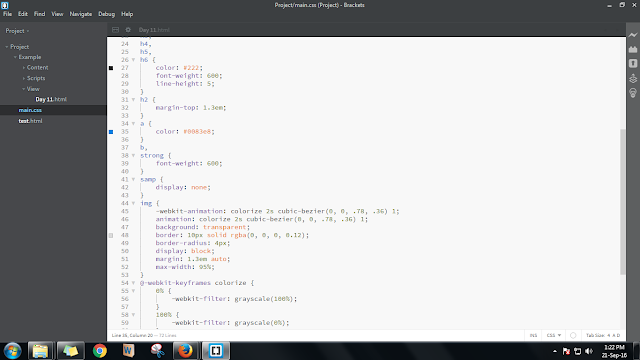
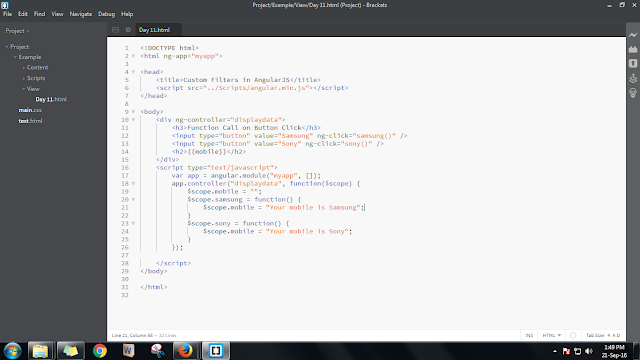
Brackets Screen:


The best feature of this application is to preview your live code changes on the browser with a single click. In this application, there is a button named ‘Live Preview”, which is used to view the live changes on browser by single click on this button. Even it provides better intelligence for HTML tags, CSS, JavaScript, j Query and many other framework. It also provide auto feature for code indentation, alignment, syntax error highlighting etc. There are n number of plugins available in the market which is easily plug-in and help the developers to code it with an ease.
 
Widely Used Plugins/Extensions of Brackets 

 * Angular Js Code Hints  

It provides hint for Angular JS elements like ng-include, ng-view and attributes such as ng-class, ng-controller, ng-app. You can download it from https://github.com/sirajc/Brackets-AngularJS-CodeHints/


 * Auto Brackets

When you write { , [ or ( and press enter, closes the tag and leaves the cursor in the middle line with correct indentation.You can download this extension from https://github.com/beldar/Auto-Brackets

* Auto Prefixer

It automatically adds vendor prefixes in the Css when necessary.The automatic mode is used by toggling "Auto prefix on save" on in the Edit menu.This will process the whole file each time the document is saved and add and/or remove vendor prefixes where appropriate.For more control over where prefixes are added and removed a piece of code may be selected and processed by clicking "Auto prefix selection" in the Edit menu.Only the selected part of the document will be processed.You can download it from https://github.com/mikaeljorhult/brackets-autoprefixer

* Auto save Files on Window Blur

Auto save all open files when switching away from the Brackets editor, in the style of PHPStorm/WebStorm.You can download it from https://github.com/martypenner/brackets-autosave-files-on-window-blur

 * Beautify

Brackets Beautify can be run manually on the whole file or on a selection. Use the Toolbar Button with the wand icon, the menu entry Edit > Beautify, the context-menu entry Beautify, or one of the keyboard shortcuts Ctrl-Alt-B (Windows/Linux), Ctrl-Shift-L (Windows), Cmd-Shift-L (Mac), or define your own. Alternatively it can be enabled to run automatically on save. Use the menu entry Edit > Beautify on Save or the more advanced settings to activate.You can download it from https://github.com/brackets-beautify/brackets-beautify

* CSS Color Preview 

It previews the colors within CSS file.You can toggle the enabled of this extension from the view menu.You can download it from https://github.com/cmgddd/Brackets-css-color-preview 


* Detect Indentation

Brackets Extension to detect the indentation used in the current file and set your editor settings accordingly.You can download it from https://github.com/hirse/brackets-detect-indentation

* Brackets Snippets (by edc)

You can add customize snippets to your Brackets Editor.Even you can use Snippet Library to find awesome snippets.

Snippet Manager


Snippet Library


 You can download it from https://github.com/chuyik/brackets-snippets

* Working File Tabs  

Enable working files list in Sidebar to show as tabs.


You can download it from https://github.com/demonmhon/brackets-working-file-tabs

* Duplicate Files and Folders

An extension for Brackets that provides the duplicate functionality to duplicate files and folders in the project view.

Duplicate - Right click on a file or folder in the project view and select "Duplicate" from the context menu.

Copy or Move - Right click on a file or folder and select "Mark" to mark the file/folder to be copied or moved. Then right click on a file or folder at your desired destination and then select "Move to Here" or "Copy to Here". You can download it from https://github.com/torinpascal/brackets-duplicate-extension

* Extract For Brackets (Preview) 

Preview of Extract functionality inside Brackets. Extract design information and assets from a design comp via contextual code hints for CSS. 

 * FuncDocr

A brackets extension to generate JS/PHP Documentation for your functions. 
  • Open a JS or PHP file
  • set your cursor on a function declaration 
    • function cool(stuff)
  • Use the ShortCut Ctrl-Alt-D (Win) or Ctrl-Shift-D (Mac) to start the documentation or /** + Enter


You can download it from https://github.com/wikunia/brackets-funcdocr 


* Indent Guides 

A Brackets extension to show indent guides in the code editor.Toggle the extension with View > Indent Guides. 


 You can download it from https://github.com/lkcampbell/brackets-indent-guides 

* More HTML Code Hints

Extends HTML code hints with more HTML5 elements and attributes such as picture, srcset, inputmode as well as HTML4 elements such as cellpadding, cellspacing and iframe. You can download it from https://github.com/coliff/Brackets-HTML5CodeHints/

* Paste and Indent 

Automatically apply the correct indentation to pasted text. You can download it from https://github.com/ahuth/brackets-paste-and-indent 

* Reasonable Comments 

Simple enhancements for typing block comments in Brackets. When you press Enter, the next line is automatically prefixed with a properly indented "*". You can download it from https://github.com/peterflynn/reasonable-comments

Whitespace Normalizer

It trims trailing white spaces, transforms tabs to spaces and ensures newline at file end. You can download it from https://github.com/dsbonev/whitespace-normalizer

* Sftp Upload

Steps to Upload a File:

  • Open Extension Manager by clicking the building-block icon on the right side of Brackets;
  • Search for sftpupload;
  • Click Install;
  • Click the up-side arrow icon (on the right) to open the panel;
  • Navigate to your project, click "Server Setup" button and fill in your server info;


Now you can right-click on the files in your project, use Upload via SFTP to upload it to your server
  • If you change and save a file within the project, it will show up in the bottom panel; you can click "Upload" to upload this file, "Skip" to skip a single file, or "Upload All" to upload all changed files to the server.
  • Shortcuts:
    • (Ctrl-Alt-U / Cmd-Alt-U) to upload the current opening file;
    • (Ctrl-Shift-U / Cmd-Shift-U) to upload all changed files;
    • (Ctrl-Alt-Shift-U / Cmd-Alt-Shift-U) to open up Upload panel.
 Now you have got better knowledge about various extensions of Brackets.

Happy learning....!!